
Guide
Using the Camlune studio.
Everything you can do in Camlune, from one-click looks to fine-tuning every detail. New here? Start with setup.
The studio window
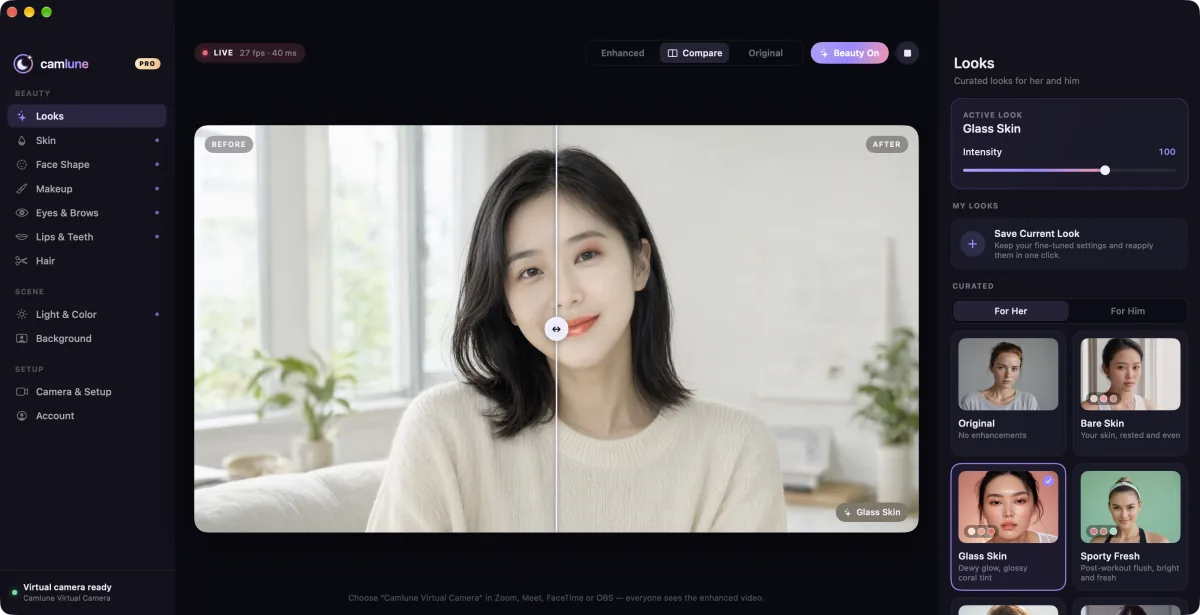
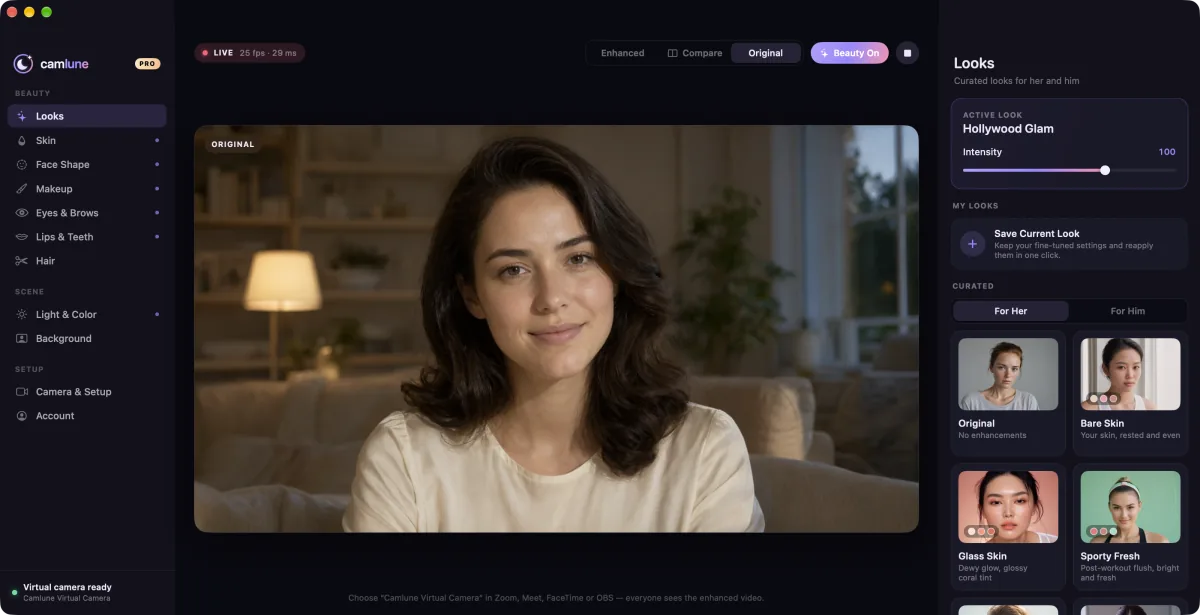
Camlune has three columns. On the left, the sidebar lists every section: Looks, Skin, Face Shape, Makeup, Eyes & Brows, Lips & Teeth and Hair under Beauty; Light & Color and Background under Scene; and Camera & Setup and Account under Setup. In the middle is your live preview, exactly what your video apps receive. On the right are the controls for the section you picked.
Looks and intensity
Open Looks, choose For Her or For Him, and click a look to apply it. Each look is a complete recipe of skin, makeup, sculpting and light, designed for video. Use Intensity to go subtler or stronger, from 0 to 150%.
Free includes Bare Skin, Glass Skin, Natural Groomed and Well-Rested. The other 17 looks are part of Pro, and you can try any of them in the preview first.
Before and after
Use the switch above the preview: Enhanced shows your look, Compare splits the preview so you can drag a divider between original and enhanced, and Original shows your untouched camera. Your video apps always receive the enhanced picture while Beauty is on; switch Beauty On off to send your plain camera.
Studio sections
Every section has its own controls, each with a Reset. Changes apply live, so you can watch the preview while you adjust.
Skin
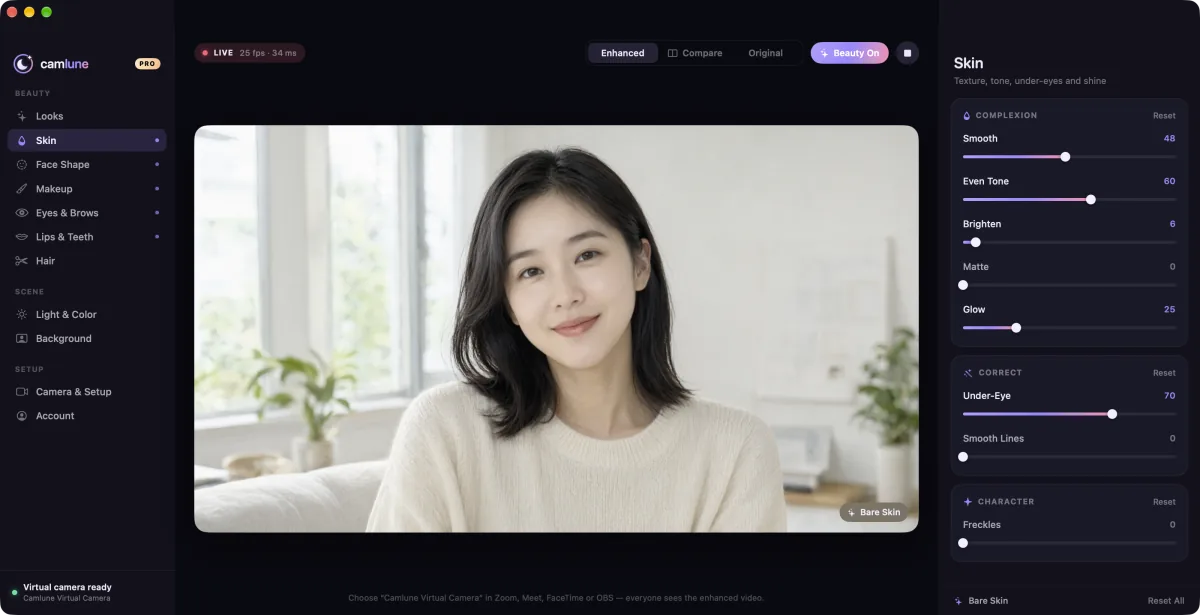
Smooth, even tone, brighten, under-eye, smooth lines, matte or glow, and freckles if you love them.
Face Shape
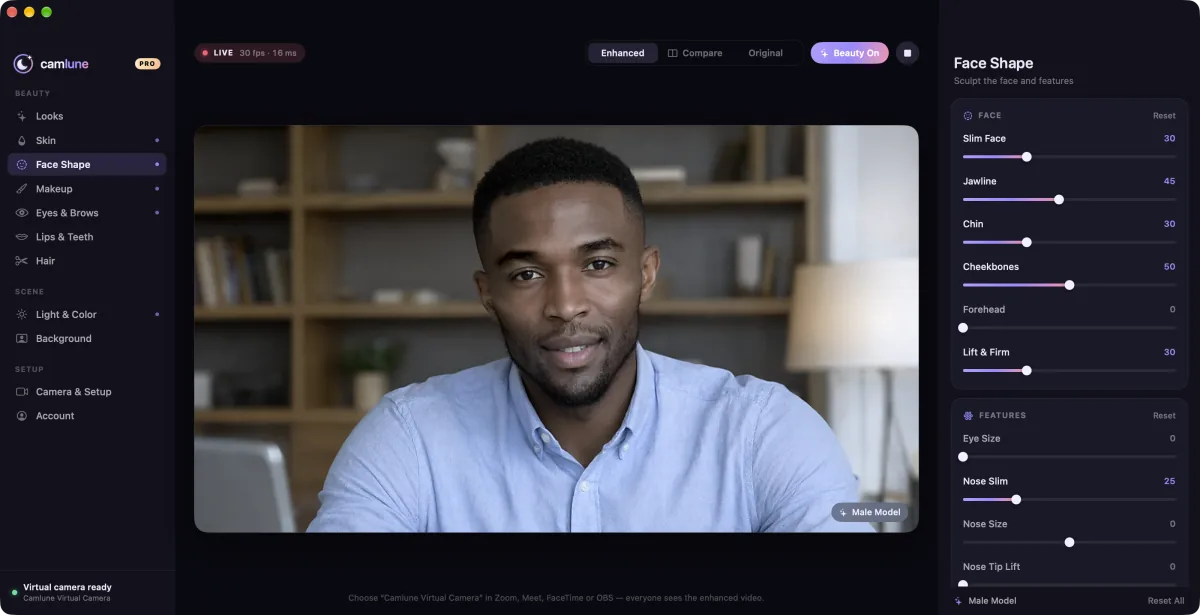
Gentle, face-tracked sculpting for face width, jaw, chin, cheekbones, nose and forehead.
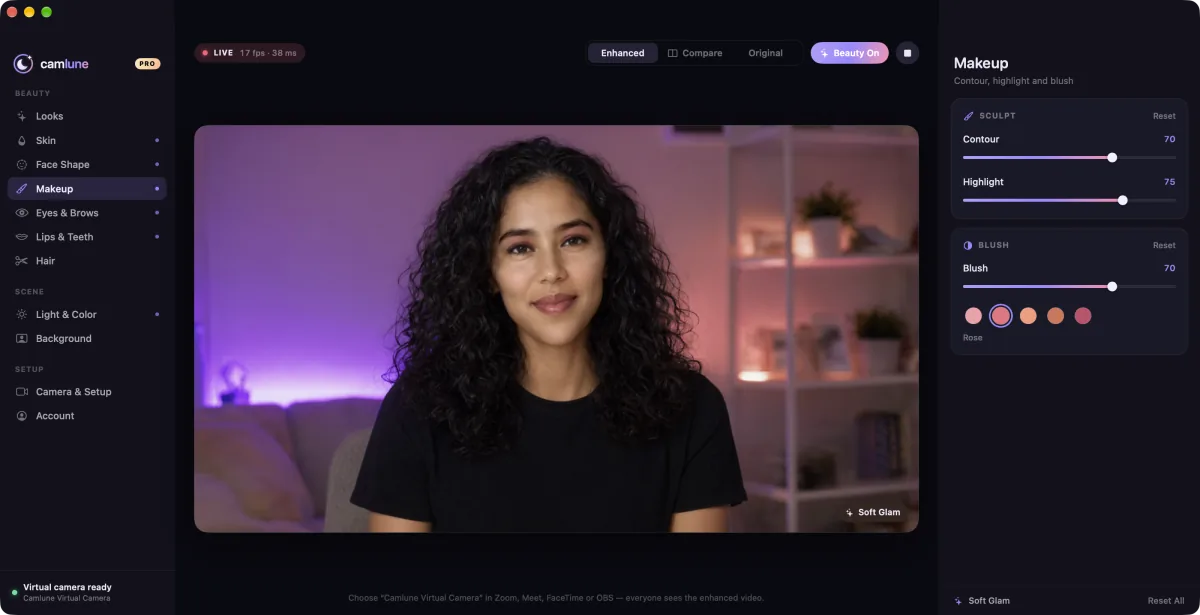
Makeup
Contour, highlight and blush, with shades picked to stay flattering on video.
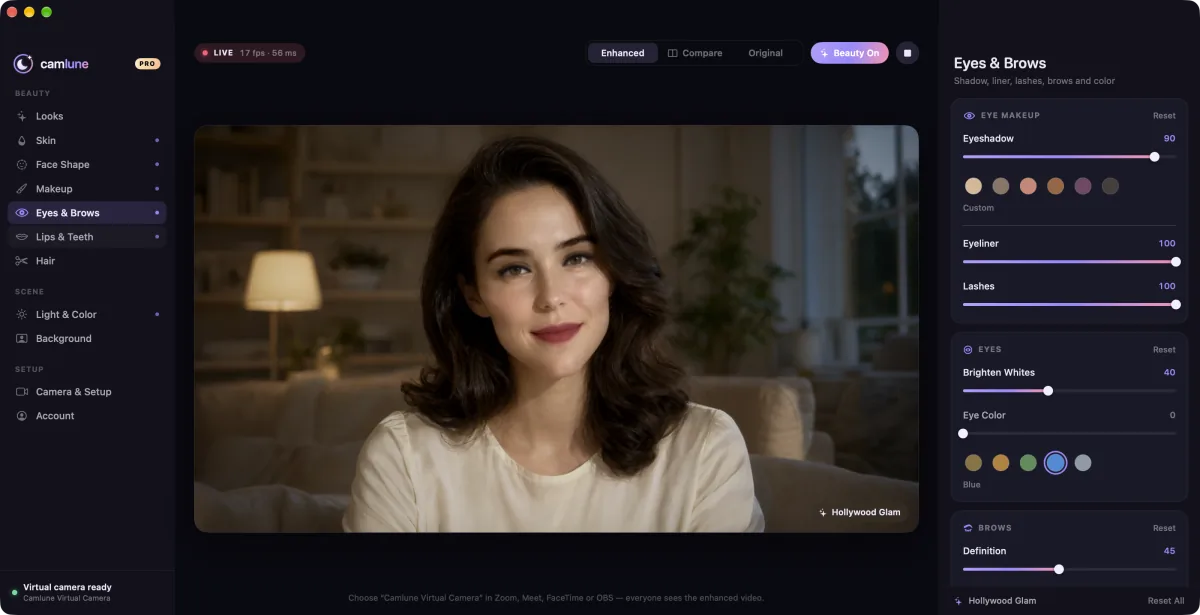
Eyes & Brows
Eyeshadow, liner, lashes, brighter whites, eye color and brow definition.
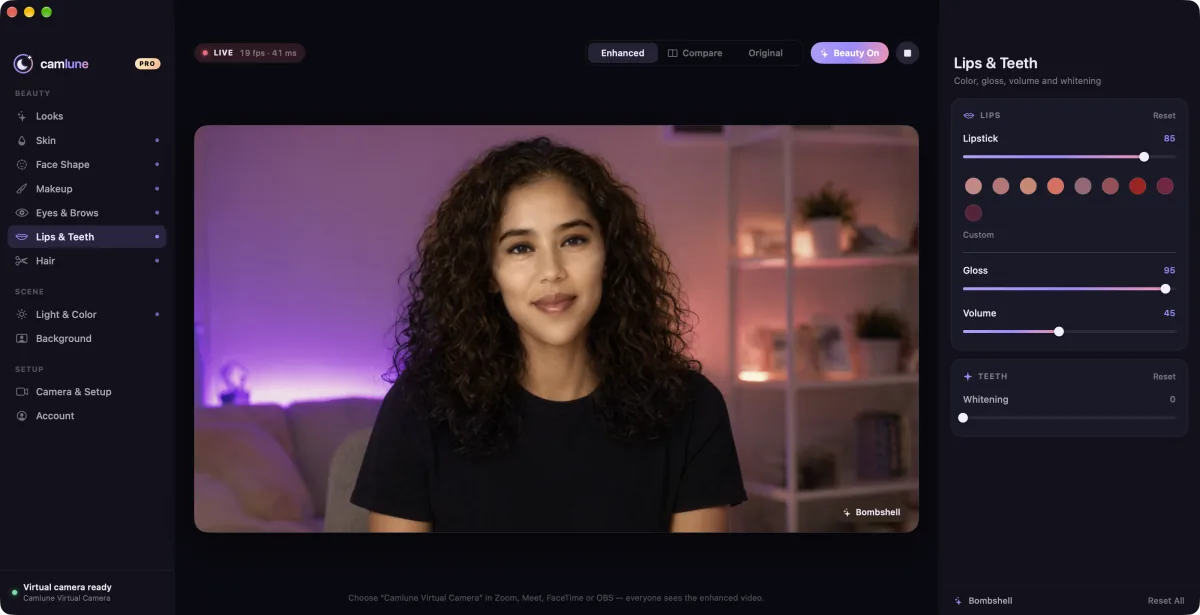
Lips & Teeth
Lipstick from nude to classic red, gloss, volume and a brighter smile.
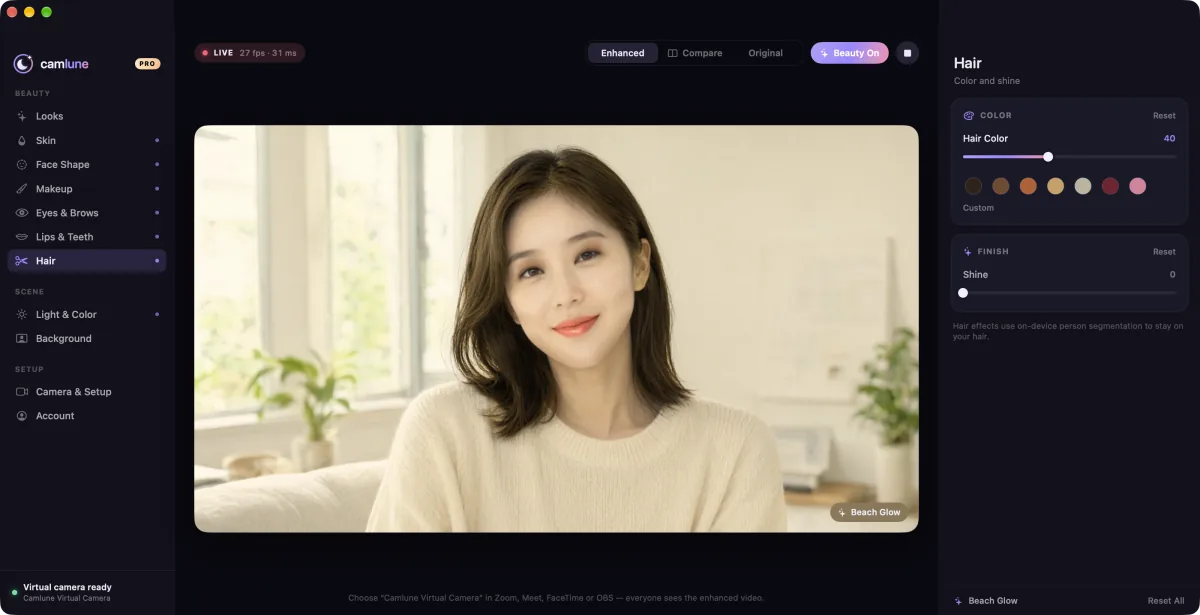
Hair
Try a new hair color or add shine, masked to your hair by an on-device model.
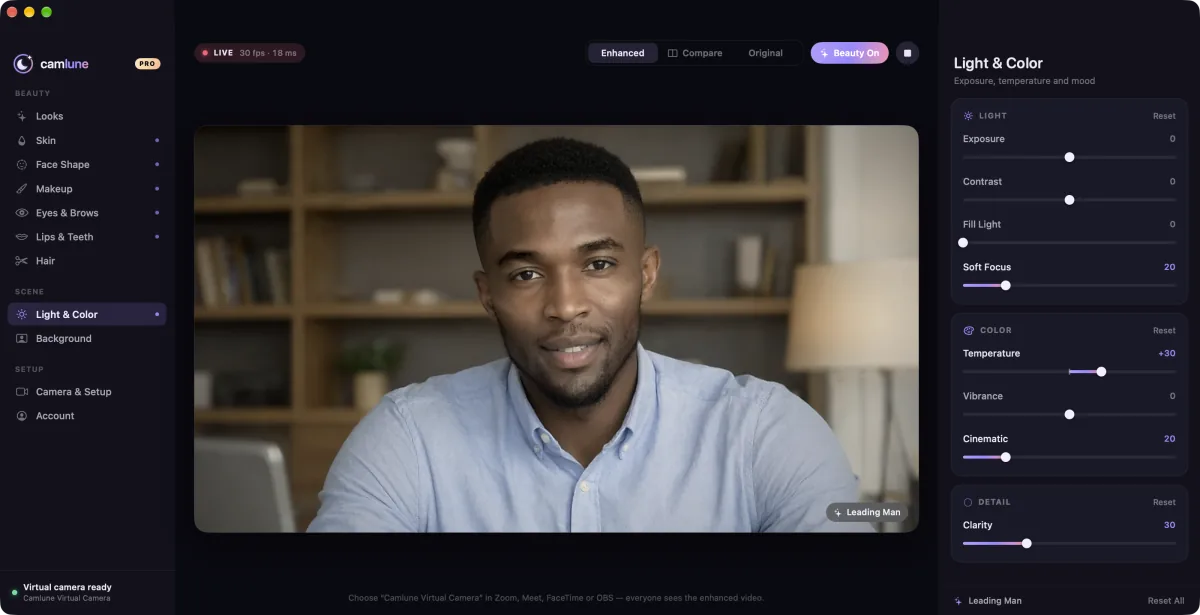
Light & Color
Exposure, temperature, fill light, soft focus, vibrance and cinematic grades.
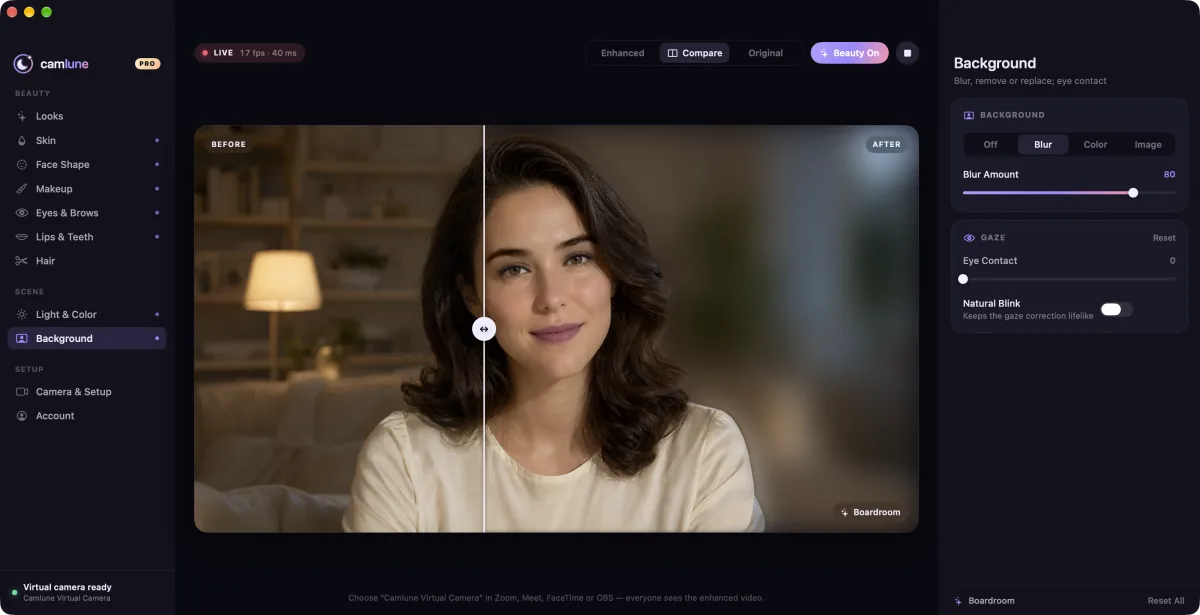
Background
Blur your background, remove it, or replace it with a color or your own image.
Background and eye contact
In Background, choose Blur (free), or with Pro, Remove, Color or Image. Camlune separates you from the background on your Mac, even when beauty effects are off. Pro also adds Eye Contact, which gently redirects your gaze toward the camera while you look at your notes, with natural blinks.
Save your own looks
Once you've adjusted a look, open Looks and click Save Current Look under My Looks, then give it a name. Your saved looks appear under My Looks, ready to reapply in one click. Free includes one saved look; Pro saves as many as you like.
Camera & Setup
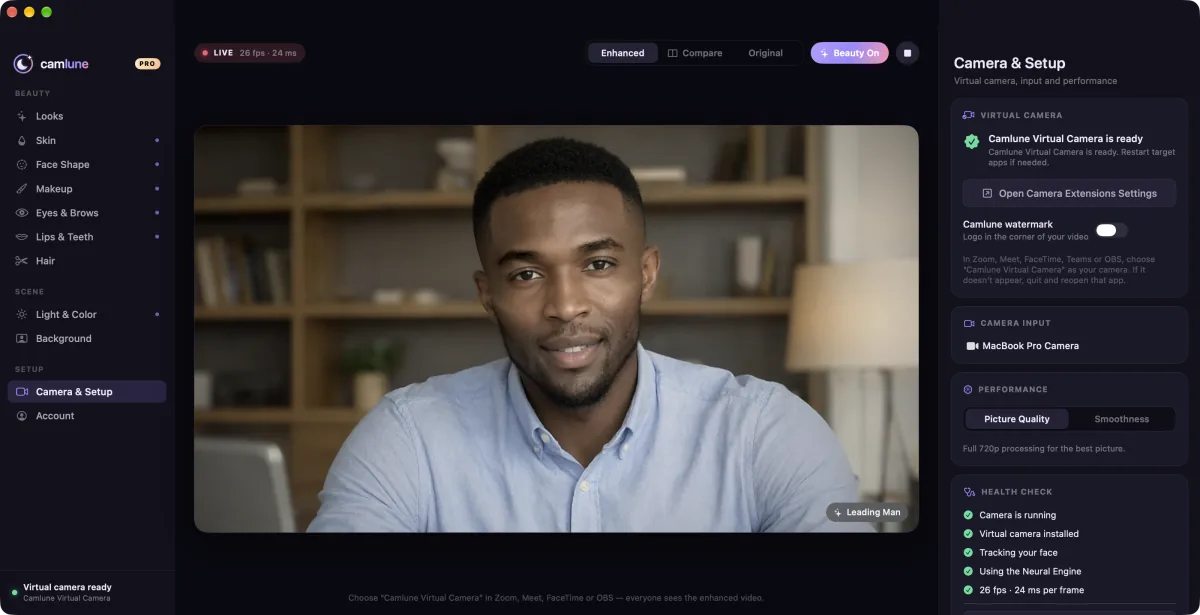
Here you'll find the virtual camera status, your camera input, the performance mode (Picture Quality or Smoothness) and a health check that confirms the camera is running, the virtual camera is installed and your face is being tracked. Pro users can also turn the Camlune watermark off.
Privacy settings
Open Account → Privacy & Notifications to switch usage statistics and crash reports on or off, and to manage notifications. Your video is always processed on your Mac and never uploaded. Read more in our privacy policy.
Free and Pro
Free gives you a natural-look camera with four everyday looks, the core skin controls, lipstick, exposure, temperature and background blur, with a small watermark. Pro unlocks all 21 looks, every control, background replacement and eye contact, and removes the watermark. Pro controls and looks are marked PRO. On the free plan they aren't sent to your camera, but you can start a Pro preview to try them live; your video then shows a small Pro Preview badge until you upgrade. See pricing.
Questions? See the FAQ or contact support.